
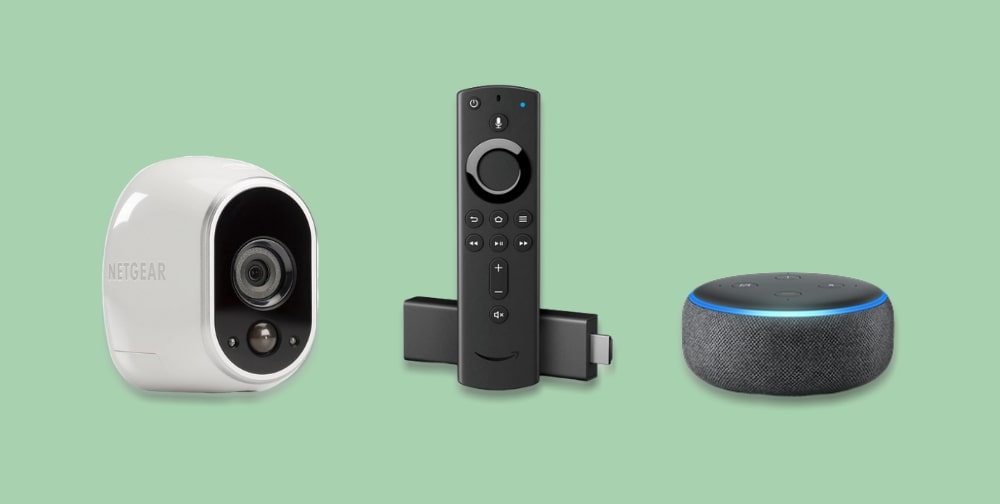
In this How To, I will talk you through the steps for how to see Arlo cameras on a TV or projector using an Amazon Fire TV Stick. Your TV will soon be your very own security camera monitor at a touch of a button or Alexa voice command if you follow my instructions using the following products:
- Amazon Fire TV Stick 2nd Generation or 4K
- Amazon Echo Dot
Table of Contents
ToggleHow do I connect my Arlo camera to Amazon Fire Stick?
Install the Alexa App
The first step is to download & install the Alexa app. Please note. Your Alexa app and Fire TV Stick must use the same Amazon account and be connected to the same Wi-Fi network. However, your Arlo cameras do not need to be connected to the same Wi-Fi network as your Fire TV Stick.
Enable the Arlo Skill
In the home screen, select the
3 lines menu and tap Skills & Games. Tap the search icon and type in “Arlo”. Tap Enable to use button and follow the steps to link your Arlo account with Alexa.
Discover your Arlo Devices
If you didn’t see a notification message and your Arlo devices still haven’t been discovered, head over to the Devices section, scroll across at the top to the All Devices section. Tap the + icon, Add Device, scroll down to tap Camera then Arlo and finally Discover Devices.

